The desktop app, screen by screen
Dashboard
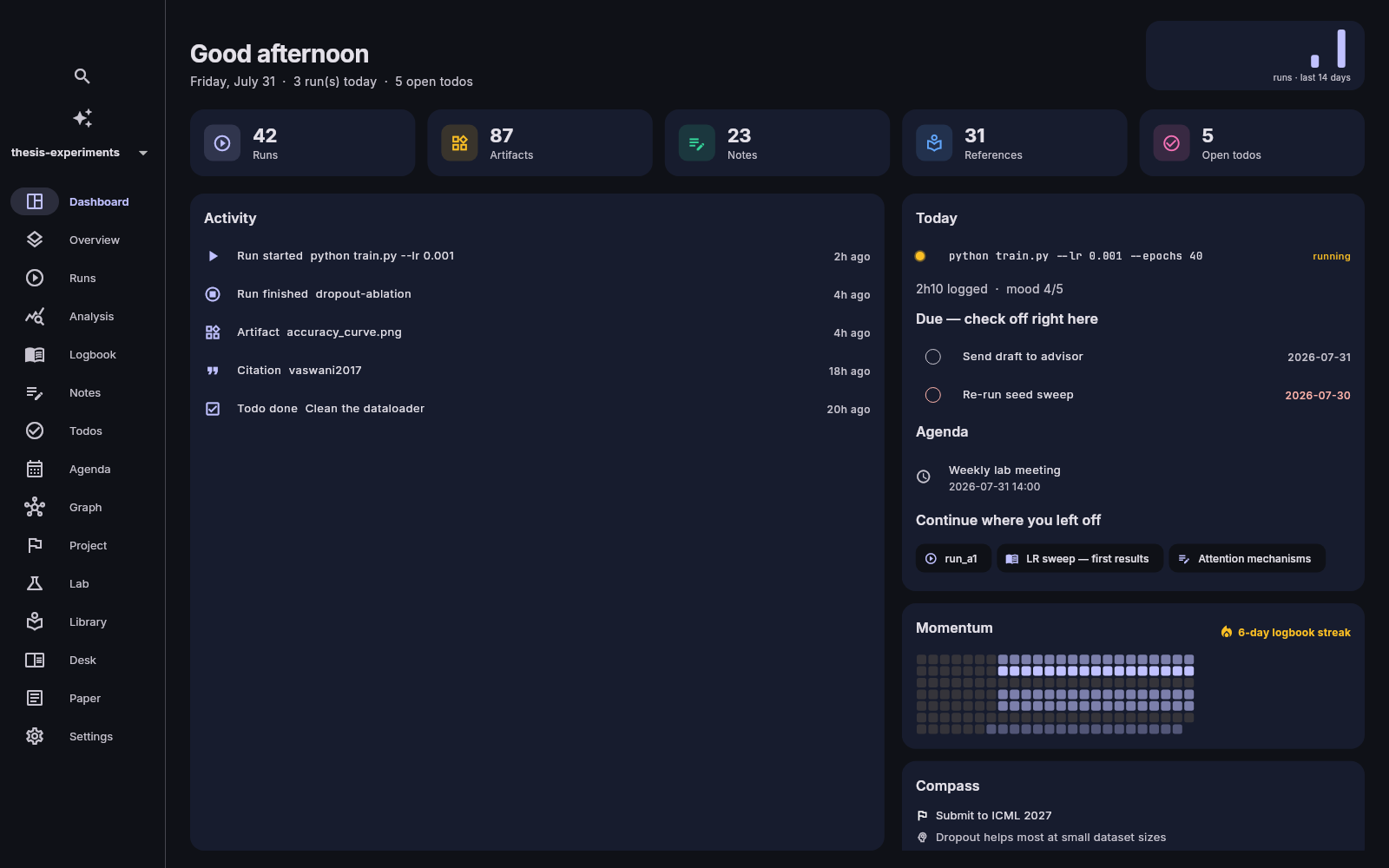
Greeting, today's numbers, a 14-day run sparkline, the live activity feed, and the right-hand column: Today (running experiments, checkable due todos, continue-where-you-left-off), Momentum (logbook streak + activity heatmap), your Compass goals, and an optional AI digest.
Overview
The cross-workspace view: per-workspace counts and sync status, a "needs attention" radar (overdue todos, failed runs, stale figures, unsynced changes), global search, and a merged activity feed.
Runs & Analysis
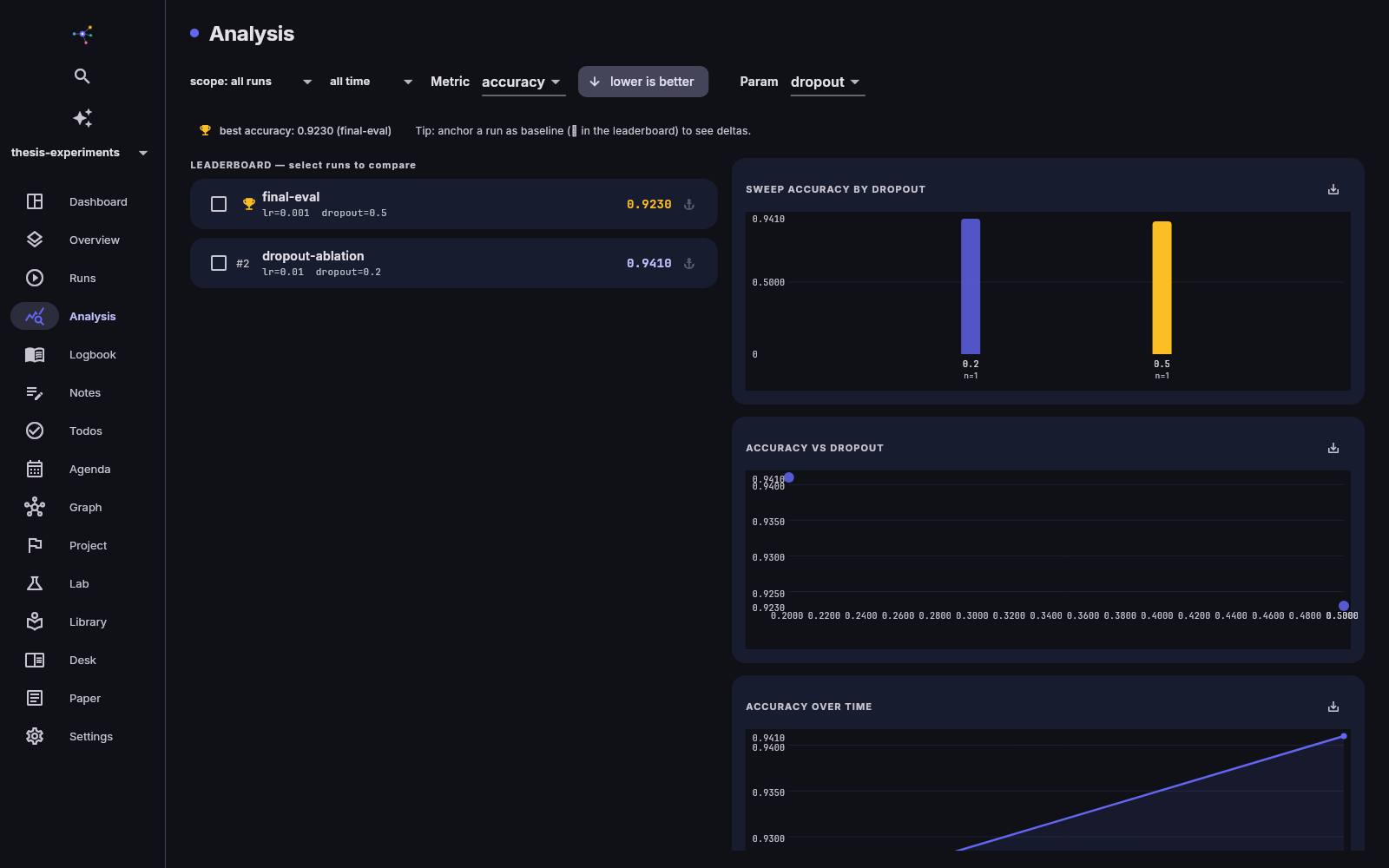
The run board groups running experiments, flow chains and everything else; tiles show status, metrics and age. A run's detail page has live logs, metric charts (including streamed history), artifacts with inline previews and a Use in paper button that maps an artifact to a stable figure name, a provenance graph, linked elements, re-run with edited parameters, diffs against any other run, and an interpretation field for recording what the result means, the decision taken and the next step. Analysis adds leaderboards with a baseline anchor, parameter sweeps, scatter/time charts, and one-click export of any chart as a provenance-tracked figure.
Runs started from the app use your project's environment: a
workspace .venv, conda environment.yml,
uv or poetry lockfile is detected automatically. The start-run dialog
also has a Jupyter notebook toggle — the notebook executes
headlessly with the same capture, and the executed copy, outputs
included, becomes an artifact of the run.
On a synced workspace, the start-run and re-run dialogs offer Run on another computer: the request is queued (encrypted, like everything else), a machine of yours that has opted in executes it, and the result appears on the board as an ordinary run — logs and artifact files included. Pending and completed requests show in a strip at the top of the Runs screen. See remote runs for setup and details.
Logbook & Notes
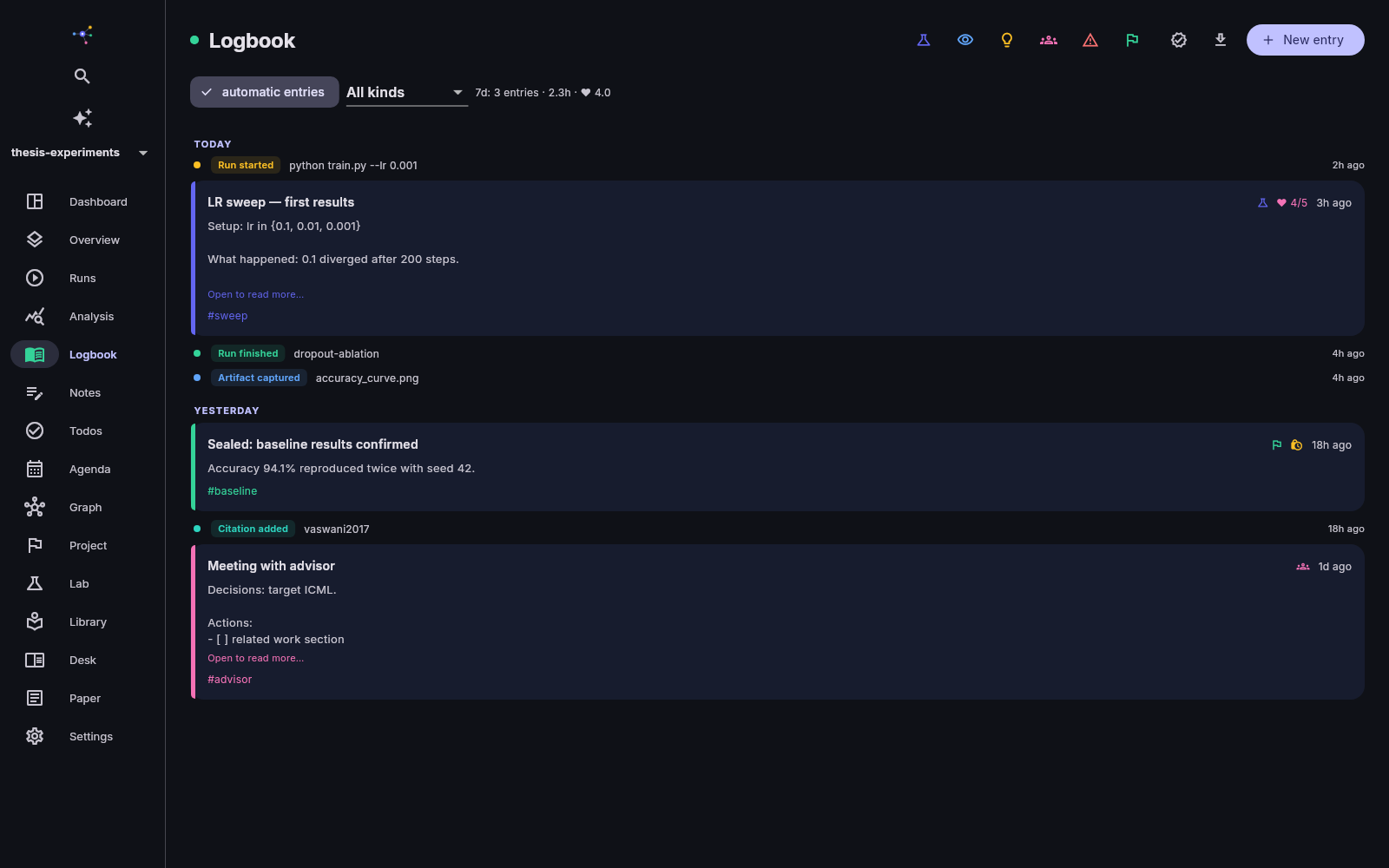
The logbook is a color-coded timeline of typed entries merged with
automatic events (runs finishing, artifacts appearing). Templates per
kind, day headers, weekly stats, project filters — and sealing for
tamper-evident records, with optional RFC 3161 timestamps and a
one-click evidence-package export. Checklist lines inside an entry
become live action items you can tick in place or file as todos. The
timeline button replays the whole project chronologically and drafts a
progress report for any date range — ready for your next progress
meeting.
Sync conflicts never cost you a paragraph: each entry's
History button lists the versions kept from sync merges, with
one-click restore.
Notes are wiki-linked ([[Title]]), back-linked, templated,
carry workflow statuses (draft / in progress / to review / final), and
connect to runs, references and todos.
Todos & Agenda
Planning buckets (Overdue / Today / This week / Later), a kanban board view, subtasks, recurring items, natural-language quick add, drag reordering inside lists, and "schedule on agenda". The Agenda merges every workspace, color-coded, with a month view and a week grid where events drag and resize in place, recurring events, reminders, deadline flags from due todos, and ICS import/export.
Graph & Project
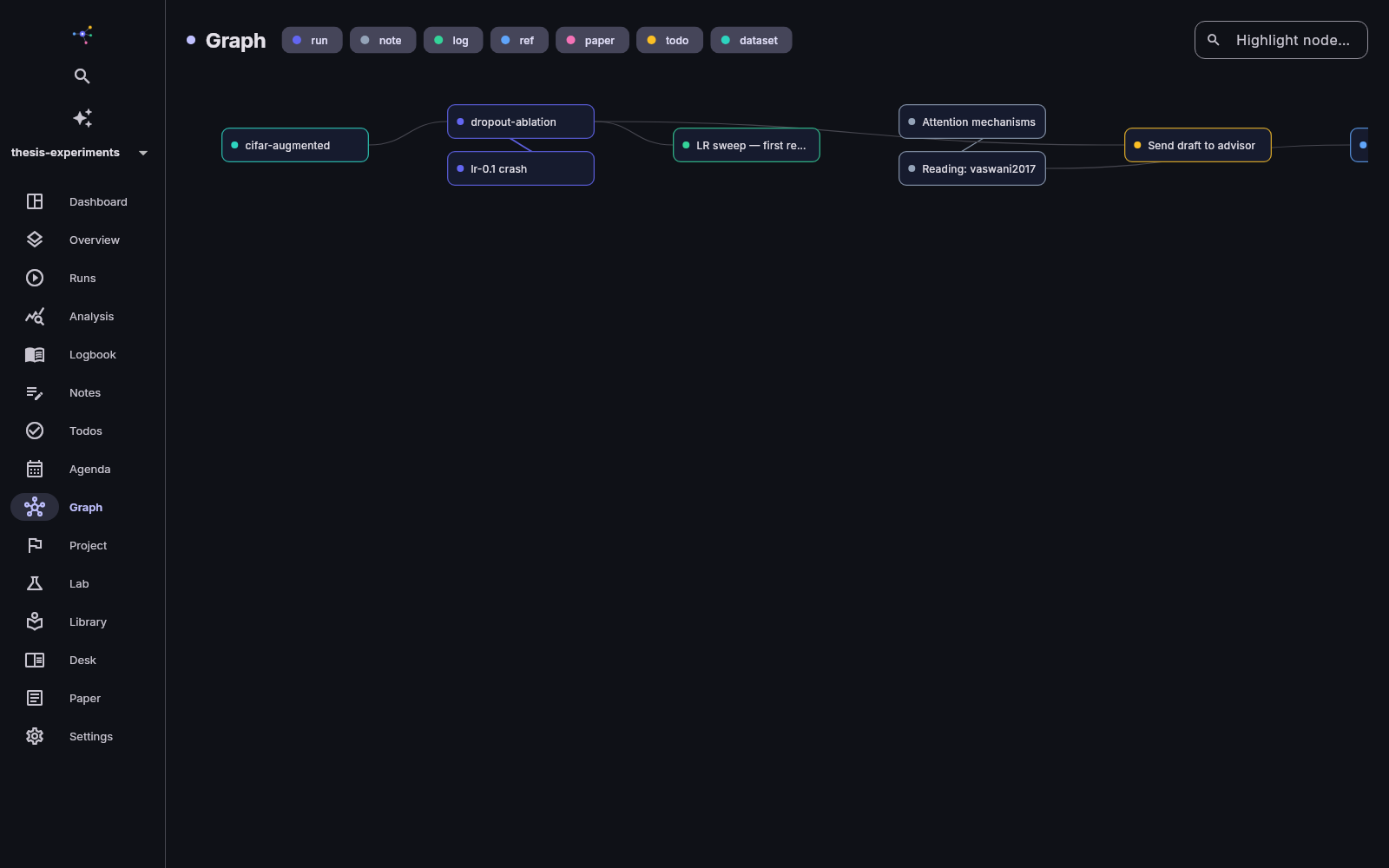
The graph shows your workspace as connected knowledge — runs, notes, references, todos, with wiki and provenance edges; filter, search, or focus two hops around any node. Project is the compass: goals, hypotheses with attached evidence (runs and notes, supporting or contradicting), and a decision journal.
Library & Desk
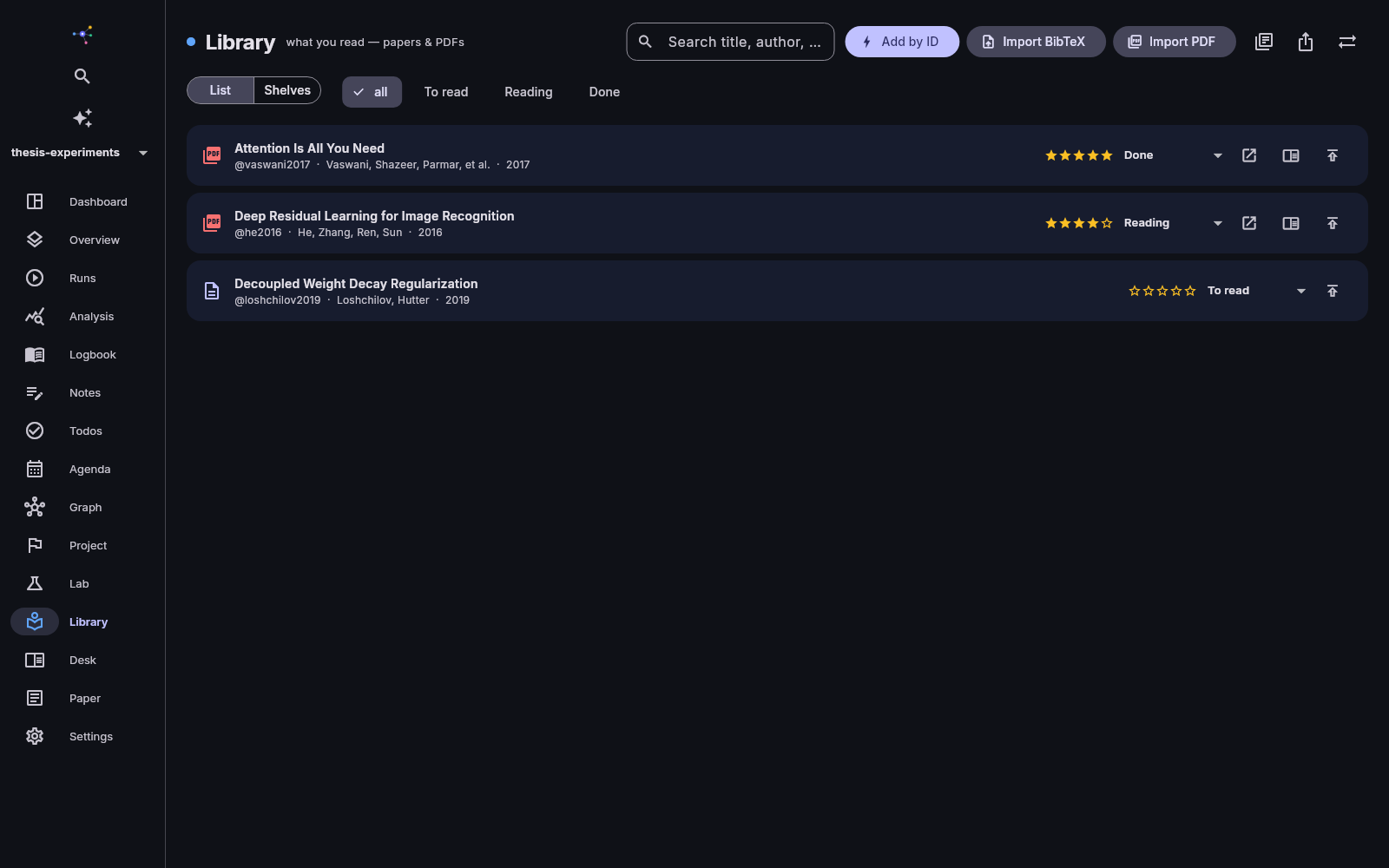
BibTeX-native references: add by DOI/arXiv id, import BibTeX, PDFs or a Zotero library; shelves (to read / reading / done), ratings and APA-formatted bibliography export. The Desk reads PDFs in-app with multi-document tabs, highlights that sync as annotations, quote-to-note with page references, and a persistent reading note per paper.
Paper
Markdown with live preview, outline navigation, section scaffolds (IMRaD, thesis chapter, report), snapshots with diffs, citation autocomplete from your library with a cited/uncited panel, figure insertion from run artifacts with hash-based staleness checking, and PDF/DOCX export.
Two buttons in the header connect the paper to your evidence.
Paper assets manages stable figure names: map an artifact from
any run's Artifacts tab (Use in paper), then export — every
mapped file lands in paper-assets/ under its stable name,
with provenance manifests, so your LaTeX or Word document updates in
place when you re-run and re-export. Slides generates a Marp
or Beamer deck skeleton from recent or pinned runs, one slide per run
with a closing provenance table.
Lab (or Duo)
The shared-space tab is named after what you have: Duo for a Pro user's own shared space (up to 3 people), Lab when your account belongs to a lab — a full organization with teams, a member directory and governance, set up with us as part of the Lab plan's onboarding.
In any shared space: member roster with roles, join requests, E2EE chat and share requests, announcements, and one-click fulfill — publish an element from any of your private workspaces into the space. Owners and admins get a team overview of recent activity, and any member can post their progress report into the space with Publish report.
Lab members also get, on the same screen:
- Directory — the lab's teams, people and team spaces, with a search box over what colleagues chose to publish (interests, hand-picked references). A result is one click from a message.
- Conversations — end-to-end encrypted direct messages and group chats. Messaging someone from the directory creates the thread; the other side's app accepts automatically — no accept step. Flag a message as a request and it lands in the recipient's cross-lab requests inbox, with a mark-answered action.
- My lab profile — your opt-in expertise profile: research interests plus references you pick by hand. Empty by default; nothing is ever published from your library automatically.
- Lab overview & audit (admins only) — sync activity per team and space plus an org-wide audit trail, built from metadata only: content stays end-to-end encrypted, and results reach the overview only through reports members explicitly publish.
Labs on a lab plan can also point every member's AI assistant at a model on the lab's own hardware — see the assistant section below.
AI assistant
The ✨ icon opens a chat grounded in your workspace: multi-turn conversations with history, copyable answers, save-as-note, and "ask about this element" from runs and logbook entries. Any element can be individually locked away from it, and a global default can make everything opt-in.
Three ways to power it, chosen from the key icon in the panel:
- Your own API key — Anthropic (Claude), OpenAI (GPT), Google (Gemini) or Mistral, one key per provider. The key stays on your machine; prompts go directly to the provider.
- Plan credits — no key needed. Your question is relayed through your sync server to the model provider, answered, and forgotten — never stored or logged. This is a deliberate, explicit choice; the panel shows your remaining credits (10 questions per month during the beta).
- Lab server (local model) — if your lab has pointed its plan at a model on lab hardware, this provider appears automatically and becomes the default: prompts never leave the lab network.
Settings
Daemon connection, account & devices (create/login, recovery, passphrase change, device revocation, deletion), plan & usage, interface language (system / English / French), notifications, behavior defaults (start screen, agenda scope, week start), AI visibility defaults with per-element locks, sync per workspace, backups, trash, data management (sizes, export-all, transmission packages, unregister), and the tour replays. The shared-space card here is where you create a Duo space from a workspace or accept invitations; it also states that a full lab — teams, directory, governance — is set up with us as part of the Lab plan (contact@tramea.org).
Three sync controls live here too:
- Join a synced workspace — "Synced workspaces on
this server" lists every space on your account; Join here
recreates one on this computer with its full history (the CLI
equivalent is
ros sync join). - Sync project files — per workspace: scripts, data and drafts travel between your computers as encrypted blobs. A computer that joins a workspace where this is on gets it automatically.
- Allow remote runs on this computer — per machine: opt this computer in as an executor for runs queued from your other devices.